How to change crosshair in CS2 – complete guide 2026
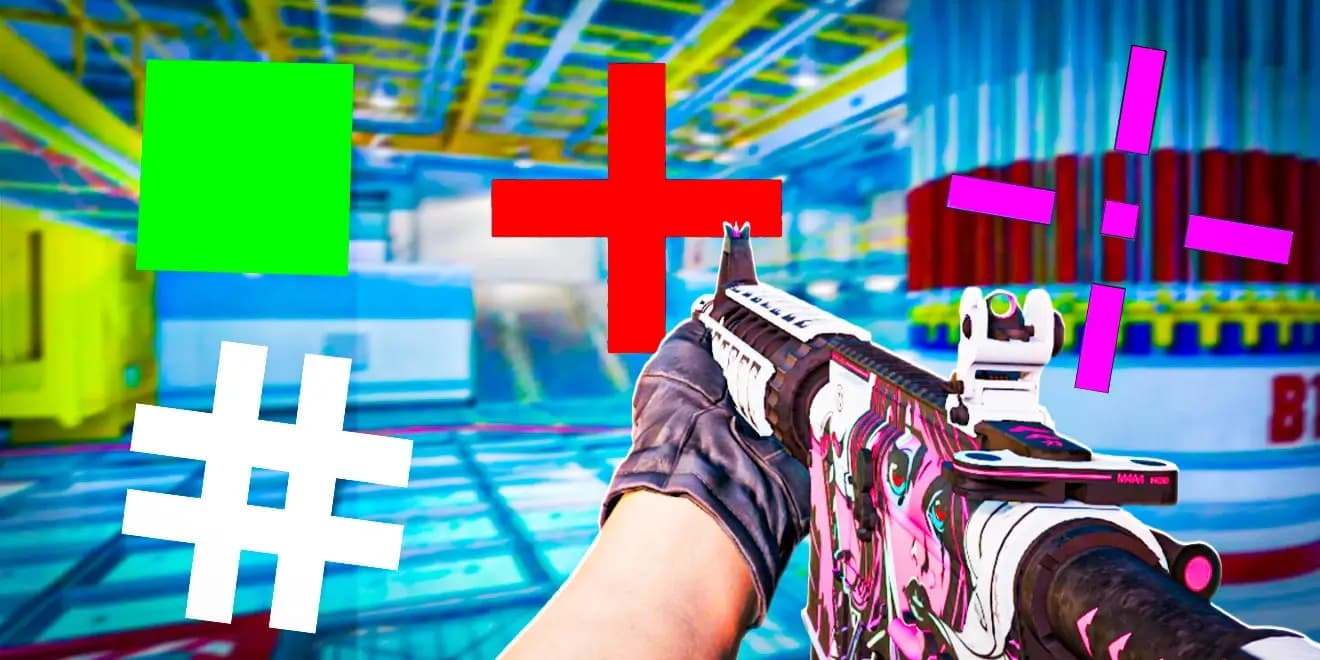
Table of contents:
-
What is the crosshair in CS2 and why does it matter
-
How to change the crosshair in CS2 – quick methods
-
Console commands for changing the crosshair – list and usage
-
The best crosshair in CS2 – how to choose
-
Crosshairs of professional players – what the pros use
-
How to save and load your custom crosshair
-
Tools and websites for testing crosshairs
-
How to match your crosshair to your playstyle – practical guide
-
How pro players change crosshairs during the game
-
Example crosshair profiles – ready to copy
-
How to set your crosshair on each map – importance of background and visibility
-
Is it worth copying a pro’s crosshair?
-
Impact of resolution and screen ratio on crosshair
-
Crosshair and player psychology – does color affect performance?
-
Final tips: what else to know about crosshairs in CS2
Want to improve your aim in CS2? It all starts with a well-configured crosshair. Many players don’t realize that a poorly chosen crosshair can reduce their performance by up to several dozen percent. In this guide, you’ll learn how to change your crosshair in CS2, the most popular settings among pros, and how to adjust your crosshair to match your own playstyle.
How to change the crosshair in CS2
The easiest way is through the in-game settings. In the “Crosshair” tab, you can adjust color, thickness, style, and more. Advanced players often use the developer console, typing commands like:
cl_crosshaircolour [0-5] - crosshair colour selection, option 5 is custom (then the commands cl_crosshaircolour_r [0–255], cl_crosshaircolour_g [0–255], cl_crosshaircolour_b [0–255] are set)
Cl_crosshairgap [-5 to 5] - The higher the number → the larger the gap in the centre of the crosshair.
Negative values → the crosshair ‘closes in’ on the centre (smaller gap).
cl_crosshairstyle [0–5] – style selection: dynamic, static, classic, T-style, etc.
cl_crosshairsize [−20 to 20] – crosshair line size; default approx. 5
cl_crosshairthickness [−2 to 2] – line thickness; default 0.5
cl_crosshair_drawoutline 0/1 and
cl_crosshair_outlinethickness [0.1–3] – enable/disable outline and its thickness
cl_crosshairgap_useweaponvalue 0/1 – dynamic change of gap depending on the weapon
cl_crosshair_sniper_width [0–20] – line thickness in the sniper crosshair
cl_crosshairstyle [0–5] – style selection: dynamic, static, classic, T-style, etc.
cl_crosshairsize [−20 to 20] – crosshair line size; default approx. 5
cl_crosshairthickness [−2 to 2] – line thickness; default 0.5
cl_crosshair_drawoutline 0/1 and
cl_crosshair_outlinethickness [0.1–3] – enable/disable outline and its thickness
cl_crosshairgap_useweaponvalue 0/1 – dynamic change of gap depending on the weapon
cl_crosshair_sniper_width [0–20] – line thickness in the sniper crosshair
Best crosshair settings in CS2 – what to know
There’s no single “perfect” crosshair. What works for one player may distract another. Pros typically use thin, static crosshairs that don’t interfere with aiming. Your best crosshair is the one that’s clearly visible on all maps and doesn’t change dynamically during gameplay.
Crosshairs used by pro players in CS2 – how the best play
Crosshair styles vary depending on a player’s role and preference. For example:
-
s1mple uses a small, classic green crosshair with minimal extras.
Crosshair code: CSGO-Jhfkc-4UpR6-DJftC-VfGek-pL3ED -
ZywOo prefers a more contrasting blue variant.
Crosshair code: CSGO-Xi4NX-WUD8O-kRLD7-JJrYj-EGnfO -
NiKo uses an ultra-thin, simple crosshair that doesn’t obstruct the target.
Crosshair code: CSGO-3ZkVZ-TKBxe-Zhs8C-m2Cy7-b2D7K
You can find many pro crosshairs online—just copy and paste them into CS2.
Static vs. dynamic crosshair – a quick comparison
A static crosshair stays the same while moving or shooting, helping with consistent aim. A dynamic crosshair expands during movement or fire, which can help with learning recoil and spray control. The right choice depends on your style—aggressive players might benefit from dynamic feedback, while tactical players usually prefer static precision.
Are there universal settings? Crosshair for beginners vs advanced
For beginners, a static crosshair with a high-contrast color like light green or yellow is ideal. Easy to control and spot.
Advanced players often opt for minimalistic crosshairs—with no center dot or ultra-thin lines—for precise headshots.
How to test and tweak your crosshair effectively
The best tool is the “crashz’ Crosshair Generator” map on the Steam Workshop. It lets you switch between different styles and see changes instantly. Alternatively, test on FFA or deathmatch servers where it’s easy to notice visibility issues.
Extra tools and commands for fine-tuning
Here are some useful console commands:
-
cl_crosshaircolor 5 – custom RGB color
-
cl_crosshairalpha 255 – transparency
-
cl_crosshairdot 1 – center dot
-
cl_crosshairgap -1 – tight line spacing
-
cl_crosshair_t 1 – T-shaped crosshair
With these, you can create a perfect setup without using menus.
Common crosshair mistakes
-
Using a too large or flashy crosshair that blocks your view
-
Choosing dynamic settings without understanding recoil mechanics
-
Not testing crosshair visibility across different maps
Avoid these, and your aim will improve instantly.
CS2 on mobile – does the crosshair matter?
Even in mobile versions or clones of CS2, the crosshair plays a huge role. While editing options are limited, choose a bold color and clear shape that stands out on smaller screens. Avoid dynamic elements that could clutter the view during fights.
Matching crosshair to your playstyle – a practical breakdown
There’s no one-size-fits-all. Different roles need different setups:
-
Entry-fraggers: small, visible, high-contrast crosshair for quick flicks
-
AWP players: often add a visible center dot
-
Support: medium-size crosshair helps with grenade throws and distant sprays
The right crosshair per role = better performance in any match.
How pro players switch crosshairs mid-game
Fun fact: many pros adjust crosshairs between matches, depending on weapon, map, or opponent. For example:
-
On white-heavy maps like Ancient or Anubis: use a darker crosshair like purple
-
With AWP: add a center dot for fast no-scope flicks
-
Save multiple crosshair profiles using .cfg files or quick-change binds
Example crosshair profiles – ready to copy
Minimal headshot aim crosshair:
cl_crosshairsize "1"
cl_crosshairthickness "0.5"
cl_crosshairgap "-2"
cl_crosshaircolor "1"
cl_crosshairdot "0"
Copy, paste into your console, test in-game.
How to adapt your crosshair per map – background visibility
Map background matters. Some colors blend in:
-
Light green vanishes in leafy maps (Ancient)
-
Dark blue disappears in shadows (Dust2, Mirage)
Tip: Losing 1v1s? Try changing crosshair color—it helps more than tweaking DPI.
Most visible universal colors:
-
Light yellow
-
Purple
-
Teal
These rarely blend with map environments.
Is it worth copying a pro player’s crosshair?
Yes—but only if you test and adapt it. Pro crosshairs (from s1mple, m0NESY, NiKo, etc.) are well-tested, but their effectiveness depends on your skill, resolution, and style.
Tip: Copy → test → tweak. Small edits (like color or line thickness) can significantly improve control.
Resolution and aspect ratio impact on crosshair
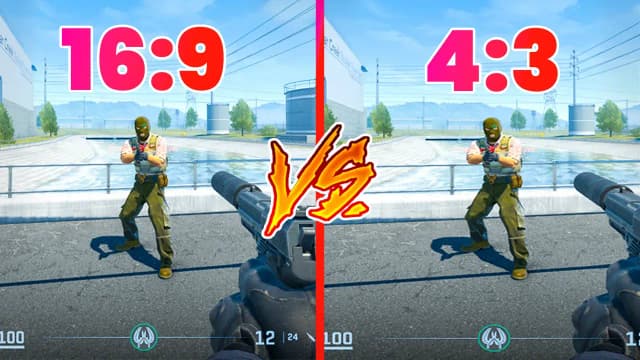
Crosshairs look different at various resolutions. Playing in 4:3 stretched can distort size and spacing.
Examples:
-
1920x1080 (16:9) – crosshair appears normal
-
1280x960 (4:3 stretched) – crosshair looks larger
Always check your crosshair after changing resolution or aspect ratio.
Crosshair and psychology – does color affect performance?
Studies in FPS games show some colors impact focus:
-
Red – alerts danger, boosts adrenaline
-
Blue – calming, but may slow reaction
-
Green – natural and neutral
Choose a color that boosts your confidence and stands out on maps.
Final tips: What else to know about CS2 crosshairs
-
Don’t change crosshair too often – build muscle memory
-
Test on deathmatch, not ranked
-
Avoid flashy designs – simplicity = efficiency
-
Adjust for each monitor you play on
-
In tournaments, consistency matters – stick to one crosshair
Conclusion:
Now you know not just how to change your crosshair in CS2, but how to align it with your playstyle, resolution, map, and personal preferences. A properly tuned crosshair is your silent ally in every round—test, adapt, and stay one step ahead of your opponents.